Find unused and unassigned Microsoft 365 licenses
GlacierPoint Ledger reads the licenses, seats, guests and shared mailboxes of your Microsoft 365 tenant and runs eleven checks for seats that cost money and do no work. The report opens on what that waste costs you a month and a year, with the users and subscriptions behind every number.
Who it is for
It is for IT administrators and managed service providers who pay for Microsoft 365 and want a list of idle seats before the next renewal.
It looks where the waste usually hides: leavers whose accounts are disabled but still licensed, two plans on one person, licenses bought and never assigned, and shared or room mailboxes holding a license they do not need.
How a run goes
- Sign in to the portal with your work email and a six-digit code, then download the Windows app and approve it with the code it shows.
- The app signs in to Microsoft with your administrator account and asks for read permissions only.
- It runs the eleven checks and uploads the result sealed.
- You open the report on the savings card, then work through one section per check.
What you get
- A savings card with the potential saving a month and a year, at Microsoft list prices or at your own, including prices imported from an invoice.
- Eleven checks: nine priced and added to the savings figure, two listed for planning without a price.
- Unassigned licenses, overlapping plans, and add-ons without their base license.
- Disabled, stale and never-activated users who still hold a license, guests with paid licenses, and licensed shared, room and equipment mailboxes.
- A line on what to do for each check, a CSV per section, a PDF of the whole report, and a run history that shows whether the waste goes up or down.
What it does not do
- It does not remove or reassign licenses. Ledger reads only, and you make the fixes yourself in the admin center. The only things it creates are the app registrations you confirm, for sign-in and for scheduled runs.
- The stale and never-activated checks need sign-in dates, which come with Microsoft Entra ID P1 or P2. Without them the check says so and falls back to the date the account was created.
- Its figures describe license use, not anyone's work. Someone with authority should review the data before a license or access is removed.
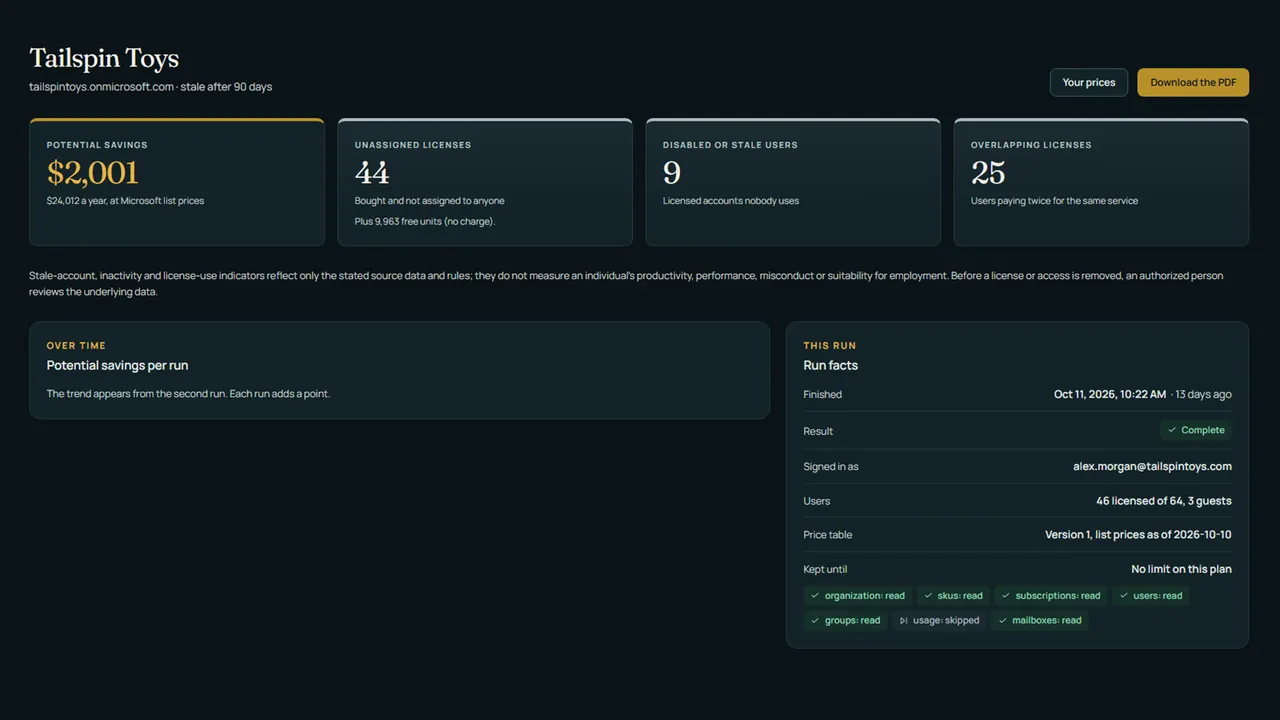
The free preview needs no card: one tenant, up to 3 runs, the savings card with every headline figure, and every check with its count and cost, showing the first 5 rows of each list. Exports and your own prices come with a plan.
Newest articles
-
How to find users with overlapping Microsoft 365 licenses
Find overlapping Microsoft 365 licenses, where one license on a user is already inside another, with a read-only Graph PowerShell script.
-
How to find disabled users who still hold Microsoft 365 licenses
Find disabled users still licensed in Office 365 with Graph PowerShell or the admin center, then release, convert or keep each license.
-
How to find unused Microsoft 365 licenses with PowerShell and Graph
Find unused Microsoft 365 licenses with Graph PowerShell: unassigned seats, disabled and stale users, overlapping plans and licensed shared mailboxes.
Articles from every GlacierPoint product, newest first, are on the articles page.